We have released a new version of TATEMS Fleet Maintenance Software. Now you can attach external documents like pictures, scanned invoices, purchase orders or any document to a Work Order. You can also add attachments to a piece of Equipment without it being linked to a Work Order.
Here are a couple of screen shots:
Screen Shot of Attachments on the TATEMS Fleet Maintenance Software Work Orders Screen (click image to see full size then click your browser’s back button when done)
Screen Shot of Attachments on TATEMS Fleet Maintenance Software Main Screen (click image to see full size then click your browser’s back)
We have also added a new Cost Per Mile/Km Report under:
Last week my youngest daughter bought her first car.
She bought a 2009 Toyota Corolla with about 35K miles on it from CarMax. She also got the extended warranty 100,000 miles on the odometer Or 75 months from purchase at Carmax for about $1000 (for the extended warranty).
My wife Karen and I discovered Carmax when we first moved to Las Vegas In 2003 and have probably purchased about 6 cars from there since.
We don’t even bother going to other dealers, we went to a few here before finding Carmax and it was not a good experience.
We just heard a car purchase horror story from the lady who owns the UPS store.
She purchased a used Mini Cooper from the local BMW dealer a few months ago. She paid about $15000 for the car and they offered her an extended warranty for $4500! Which she turned down.
Outrageous price for the warranty I thought and also a red flag.
Like, is there something about this make/model/year of car that causes it to breakdown and be expensive to repair?
It had 50K miles on it and she had some issues with it having an oil leak.
She thought they had fixed it but when she drove up to Utah the Engine blew.
In Utah she got an estimate for the engine repair for $7500!
She wasn’t happy and she has been calling the local BMW dealership to see what they can or will do and now all they do is hang up on her.
Nice.
So if you are going to buy a used car save yourself from grief and If you have a Carmax near you go there, it is a much different “no pressure” buying experience and make sure you get an extended warranty, even if it’s still under factory warranty.
In my experience they have more that paid for themselves. Like the time the transmission on my GMC Sierra had the be replaced. It only cost me the $50 deductible.
We just heard a car purchase horror story from the lady who owns the UPS store.
She purchased a used Mini Cooper from the local BMW dealer a few months ago. She paid about $15000 for the car and they offered her an extended warranty for $4500! Which she turned down.
Do you have any used car tales? Leave your comments below and have a great week!
This might be a little technical for some, but if you take the time to learn it, I think you’ll like the results.
Here is a video that shows you this process using Excel 2003:
The written instructions
Below explains how to do it using Excel 2010
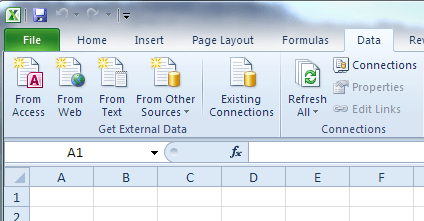
In Excel click on Data->From Access
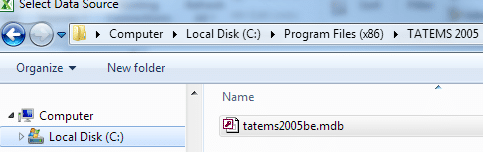
Then you will want to navigate to the:
TATEMS2005be.mdb
file in
C:\Program Files\TATEMS 2005
Or it will be in the :
C:\Program Files (x86)\TATEMS 2005
folder.
Select-Datasource-tatems2005be.mdb in the TATEMS 2005 folder
Then choose tblEquipment and click Ok
Select the tblEquipment table
Then on the Import Data popup choose properties
The Query
Then click on the Definition Tab and paste this SQL statement into the “Command Text” box”
SELECT tblEquipment.*,tlkpEquipmentType.sEquipmentType FROM tblEquipment,tlkpEquipmentType WHERE tblEquipment.lEquipmentTypeID = tlkpEquipmentType.lEquipmentTypeID
Then change the “Command Type” from table to SQL then click OK
Connection Properties->Definition Command Text And Command Type
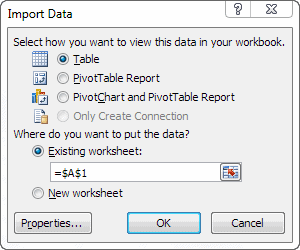
Then click OK and then click on again on the Import Data screen:
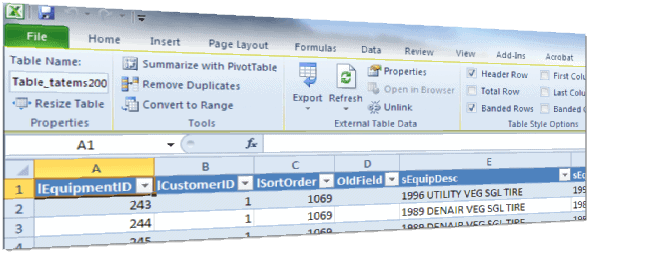
This will show you all the columns for each piece of equipment and the equipment type. You can delete the columns you don’t need and rename the others.
Get any data you want
You can use this technique to grab whatever data you need from the database by using different SQL statements.
You can also use the wizard in Excel to create your queries.
In Excel click on
Data->From Other Data Sources-> From Microsoft Query
then choose:
Microsoft Access Database*
from the list of data sources.
then click ok.
Choose MS Access Database* then click OK
Then in the “Select Database” window, you will need to navigate to the:
TATEMS2005be.mdb
file in:
C:\Program Files\TATEMS 2005
Or it will be in the :
C:\Program Files (x86)\TATEMS 2005
folder.
or on your network.
You can use the Drive at the dropdown at the bottom or use the network button if needed.
And also check the box that says Read Only
navigate to the TATEMS database file called tatems2005be.mdb click on it then click the Read Only check box
Joining Two Tables Together
Then you will be presented with the Query Wizard window and you can choose the columns inside the tables that store the info you are looking for. You usually want to expand the table called tblEquipment and choose the fields you need. In the screenshot below I have selected: sEquipNum, sEquipDesc from tblEquipment and sLocation from another table called tlkpLocation. So, if you need info like Location which is stored in another table called:
tlkpLocation
then navigate to the:
tlkpLocation table
and choose:
sLocation
Select the fields from the tables you want to display and click next
The wizard will automatically join the 2 tables together so that the Location, in this case, will be linked to the proper piece of equipment. After you have chosen the columns to display then click next and on the following screen you can create your own criteria for the report.
Filter Data
On the next screen, you will be able to filter the data if you want to. If not just click next. In the screenshot below I have selected the sLocation field then I chose equals from the first dropdown in the left column and once I selected that then the right-hand column populates with the data I want to filter for. I will choose King City from the list in the screenshot below. You can also filter on multiple fields. Once you have selected a field to filter by and created the filter you can move to another field and filter by that field.
Microsoft Query Wizard Filter Data Screen
Sort Order
Then click next and you can create your own sort order. You can sort by multiple fields, in order of importance. In the screenshot below I will just sort by the sEquipYear field as seen in the screenshot below.
Microsoft Query Wizard – Sort Order Screen Shot
Then click next and you can then choose to either return the data Microsoft Excel to view it or you can view the data and the query in the Microsoft Query window. If you are familiar with SQL then you can manipulate the query to suit your needs. I’ll choose the View data or edit query in Microsoft Query as selected in the screenshot below.
Microsoft Query Wizard – Finish
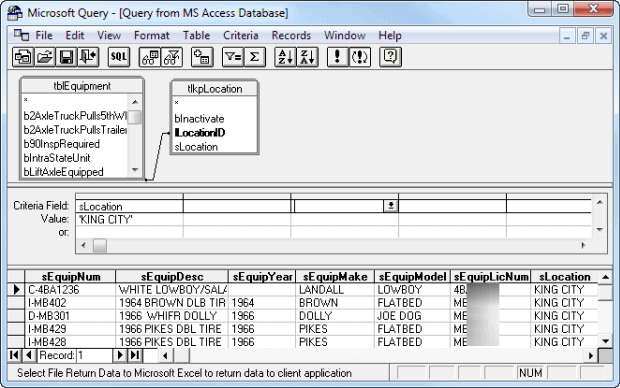
Microsoft Query
You can now see the data you have selected and once in the Microsoft Query Window you can customize your query even further.
For example, you can set the names on the column headers to a more user-friendly name by clicking on the column you want to rename and then click on Records->Edit Column. I have selected the sEquipNum column to edit in the screenshots below and will change it from sEquipNum to Equipment #.
Microsoft Query Edit Column
Edit Column change sEquipNum to Equipment # then click OK
Column heading in Microsoft Query after changing sEquipNum to Equipment #
Once you have the query the way you want it you click on the little “exit door” icon at the top to return your data to Excel.
Exit and return data to Excel
After you click the “return data to Excel” icon you will see the Import Data dialog popup and on that screen you just click OK
Import Data dialog after clicking Exit return data to excel.
I hope this gives you a basic idea of how to create your own reports in Excel with your TATEMS data.
In TATEMS news we are working on getting a number of new features out the door. For example, the ability to attach items like scanned documents or pictures to a Work order and to the equipment itself.
Then enter your date range and then if you just want to see what you are spending on tires enter the word “tire”(without quotes) in the “Part Desc” field and also in the “To” field.
Then click preview.
As long as your part description matches the word you are searching for you will see all of that description of parts installed for that date range.
You can also use a wild card asterisk * before and/or after the “Part Desc” word you are searching for to see part descriptions that maybe include more that one word and your not sure what the other word was.
I hope everything is going well for you this week.
Hopefully, this video is not as choppy as the unfinished house they are tearing down on the hill above us. More on that in a minute
I just finished up this video but updated my Camtasia Studio (Screen Cam Software) to the latest version so it might be a little bit choppy as I am just getting used to the new interface.
Last week I forgot to post the sample Terms that you can paste into the bottom of your work orders so I have added it here:
I am also posting the previous Video regarding all the new Preferences settings in Version 4.4.00 below.
So anyway someone starting building a huge multimillion dollar house on the hill above our neighborhood about 5 or 6 years ago.
It was all framed and had roofing material stacked on top of it and then it just sat there.
We figured they ran out of money or something.
Then we find out from our neighbor that they were forced to pay for all the utility lines to all the lots on the entire street. Not only that but the houses in our neighborhood that back up to the hill had contracts that said no houses would be built behind them.
So today they are chopping it up and tearing it all down… I’ve included some video below. It’s going to be weird not seeing it up there anymore. It’s really become a landmark around here that you could see for quite a distance.
It may be Las Vegas but we don’t go into town much, so you can see what passes for excitement around here. 🙂
Oh well. By the way it’s 104° F here in Las Vegas today while they were doing the tear down…
And for you dog lovers you might get a chuckle of this video my daughter took of her trying to get
our dog Kiba to play dead. Enjoy!
Please let us know if you have any questions or need any help.
We released a new version of TATEMS a couple of weeks ago and in this video I go over the new preferences options in this version update. Below this video you will also see a link to see a list of all 23 items in this update.
I hope everything is going well for you and yours as we move into summer. I’m working hard on bring you more updates and also to get our TATEMS reminders software out of beta testing.
I have been using a service called Dropbox a cool cloud storage service that I have installed on my desktop computer, my Android phone and my iPad. It’s a very cool and easy way to transfer things like photos from one device to the other.
For example, I can snap a picture on my phone and instantly upload it to DropBox and then later open it from my desktop computer or iPad.
I can also use it as an extra backup for data files or any document.
The only drawaback with Dropbox is that it only gives you 2 Gigabytes of space for free. That may be enough for most people but if you need more starage there are some other options.
Google Drive
Google just came out with a similar new cloud storage service called Google Drive that gives you 5GB of storage for free. Google says that thier service will also be searchable using Google Search technology. Google has apps for the Desktop and Android phones but not Apple devices yet.
Note: I just went to the Google Drive site and as of 2:30 PDT Arril 25, 2012 they are saying it’s not ready. Although I was able to get it on my Android Phone. But after installing it on my Android Phone, I got the same message saying it’s not ready but will notify me when it is
SkyDrive
That sounds good, but if you really want more free storage space Microsoft is offering 25GB of free storage with thier SkyDrive service. But to get the free 25 GiGs you have to have to actuallt use the service before Monday April 30, 2012
You can use any of these services to save backup copies of your TATEMS data file or any other data for that matter off site.
To get the apps for these for your Mobile device just search for the service name or click the links above to get them on your desktop.
I just added some stuff to Microsoft Skydrive to make sure I get that free 25GB of storage and I reccomend you do too.
I don’t see any reason not to use all three services for ultimate safety.
Number 65 is called TATEMSReportDriverTotalMiles-KmTraveledPerEquipment and it will show you
How many miles or kilometers a driver has driven during his time assigned to that vehicle. It displays the following columns:
Serviced By
Equip #
Work Order ID
Date Requested
Short Descriptions
Detailed Description
Number 66 is called TATEMS-OpenWorkOrdersServicedByShortAndDetailedDescriptions and it will show you all the currently open work orders for all equipment along with the short description and detailed description for each open work order. It displays following columns:
Serviced By
Equip #
Work Order ID
Date Requested
Short Descriptions
Detailed Description
Number 67 is called TATEMS-WorkOrdersTotalsByMonthPerEquipment and it shows you all the costs for your work orders for each piece of equipment for each month. It will display the following columns:
Equip Num
Month
Year
Labor Totals
Parts Totals
Misc Totals
Discounts
Tax
Total Costs
Work Orders Totals By Month Per Equipment Spreadsheet Screen Shot
Once you have your data linked from TATEMS to one of these Excel spreadsheets you can filter and sort it any way you wish.
I may create a video to show you these spreadsheets in action and how you can link them to your data. But in the meantime you can check out this previous video to help you get started.
So anyway, a couple days ago we had an attempted home invasion next store.
These people pull up in an old Chrysler Sebring and ring our doorbell first.
Of course our big dog Maya starts barking like crazy and my wife looks out and there is nobody there. So the dogs must have scared them off.
Then a few minutes later she looks out from upstairs and sees this big dude banging on the next door neighbors door. And he’s jiggling the handle acting all agitated.
That neighbor does not live there full time and we know he’s not home because we haven’t seen him for a couple of weeks.
So my wife goes outside and says “What are you doing?” He says “The guy owes me money and I know he’s in there” My wife says “I think you have the wrong house”.
He has a female accomplice with him and she looks like she comes from the other side of our neighbors house.
My wife goes back in the house and then she watches out the window and they take off in their car with no license plates on it.
So she goes back outside and notices that our neighbors door had a huge uneven hole about 2 feet in diameter up next to the lock.
Now she’s worried that they saw her and she tells me our neighbors not going to be very happy.
So anyway we call the cops out and they talk to us but there isn’t much they can do because the neighbor is not there to actually file a report.
They do enter his house and do a little CSI work. They also tried to jery rig the door so that you don’t see the big gaping hole from the street.
So we’ll see what becomes of it and thank God we have a big dog as a deterrent, although I’m seriously considering adding some other forms of home protection now.
Have a great week and feel free to Like, Tweet or comment below!
Another nice short (but descriptive) name, I know…
It was created because the client wanted to be able to see Parts and Labor Totals for Model and or Year of Equipment and other fields like Equipment Location.